Ask an AI about this
Your own translation starts here. Point Tranzio at a game you own, it reads the text and the voices out of it, and a guided walk does the technical parts while you make a couple of choices.
Translate a game
Your own translation starts here. Point Tranzio at a game you own, it reads the text and the voices out of it, and a guided walk does the technical parts while you make a couple of choices.
Every translation in the catalog started exactly here: someone pointed Tranzio at a game and said "let's translate this." Translate a game is a guided wizard, so you're never staring at an empty screen wondering what's expected. It walks you through a handful of small steps, each one either automatic or a single decision, and at the end the game sits in your library with all its text extracted and ready to translate.
BuildThe game joins your library with its text extracted.
Open beta engine support. Right now Tranzio can read games built on Unreal Engine 4 and 5. That's a large share of modern PC games, but not all of them. Support for more engines is actively in the works, so if your game isn't supported yet, request it and check back soon.
The walkthrough
Open Translate a game and pick your game
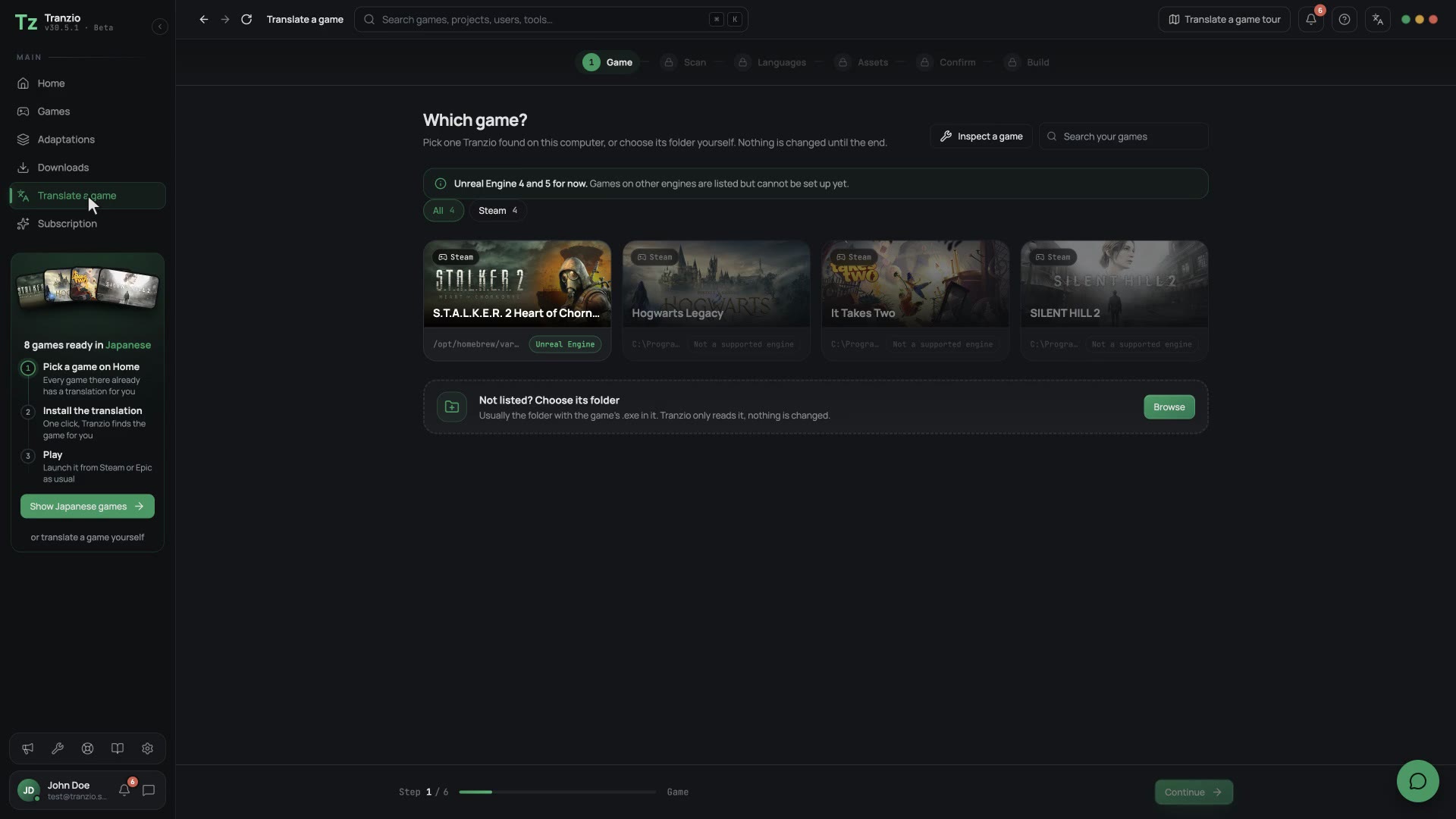
In the Main section of the sidebar, choose Translate a game. Tranzio shows the folders you opened before and the games it found in Steam and Epic, on one shelf with their artwork. The buttons above it narrow the shelf to Recent, Steam or Epic. Click the one you want. If yours is not there, press Browse on the line under the shelf and pick its folder.
 GIF
GIFPicking S.T.A.L.K.E.R. 2 from the games found in Steam, then the card that says which game the folder holds. A card that is greyed out is a game Tranzio cannot translate yet, and the card says which engine it uses. During the open beta that means Unreal Engine 4 and 5 games can be added and the rest cannot, so they are shown rather than hidden: a game missing from the list reads as a fault, and this way you can see it is simply not supported yet.
If the folder you pick is already one of your games, the wizard says so and offers to open it instead of setting it up again. Adding it twice would not give you a tidier library, it would give you a second copy with its own translations and its own adaptations, which is not something you can merge back together afterwards.
Check that it found the right game
Tranzio opens the folder and works out which game is in it, rather than trusting the folder's name, which is often a codename or an abbreviation. It reads the Steam entry the folder belongs to, the game's own program file, and the project's settings, then looks the answer up in its catalog. The name, artwork, developer, release date and genres arrive with the match, so there is nothing to type.
The match is shown as one card over the game's art, with who made it, the year and what kind of game it is, so one look is enough to tell whether it found the right game. The trailers and the description wait on the game's own page.
Almost always it is already right: press Yes, this is it. When it is not, the other close matches sit under the card, often a sequel or a remake, and a search button leads to the full search, where Don't see it? Create a new game carries on with just the name and the folder. The folder card beside them shows what was read: the engine, the size of the folder, and the program file it found.
Let the scan run
Now Tranzio reads through the game's archives and pulls out everything translatable. This is the step where the engine matters: the scanner knows how Unreal games store their text and where to look. The log tells you what it found as it goes.
Reading an Unreal game needs a couple of small command-line tools, and on a computer that has never had them the scan downloads them first. There is no separate step for it: the log shows each download filling, then the scan carries straight on. It only ever happens once. On macOS and Linux the tools are Windows programs and run through Wine, so if Wine is missing the log says so and points at the Tools page.
live-scan.logscanning00:00enginesignature match: Unreal Engine 500:01toolschecking the tools this scan needs00:01toolsRePak not installed, downloading it now00:01download[1/1] RePak00:08download[======================] 100%27.1 MB / 27.1 MB00:08downloadRePak · checking the download is intact00:09downloadRePak installed00:09toolsevery required tool is in place00:10scanwalking the game folderA first run downloading what it needs. There is no separate step and nothing to press: the bar fills in the scan's own log, and the scan continues by itself. Under the bar the scan says how long it has been running, and how much longer it expects to be once it has moved enough to know. A big game can sit near the end for a while, reading inside its archives; if that happens the estimate gives way to the elapsed clock rather than promising a second that never arrives.
A translation already installed in that folder is no longer in the way. A translated pak lives in the game's mod folder, and the scan skips that folder whole, so the game underneath is what gets read. The log says it found one and is ignoring it.
Dubbed audio used to stop the scan, and no longer does. The scan sorts files by their name and where they sit, and never opens an audio file, so a dub was never going to be read as the game's original voice: what gets recorded is the clip's path, which is the same whether or not a translation is installed. Cutscene subtitles are read, and there the game's own copy is kept beside the translated one as
original_…and is the one imported. You can scan a folder with a translation installed, and the log says what it stepped over.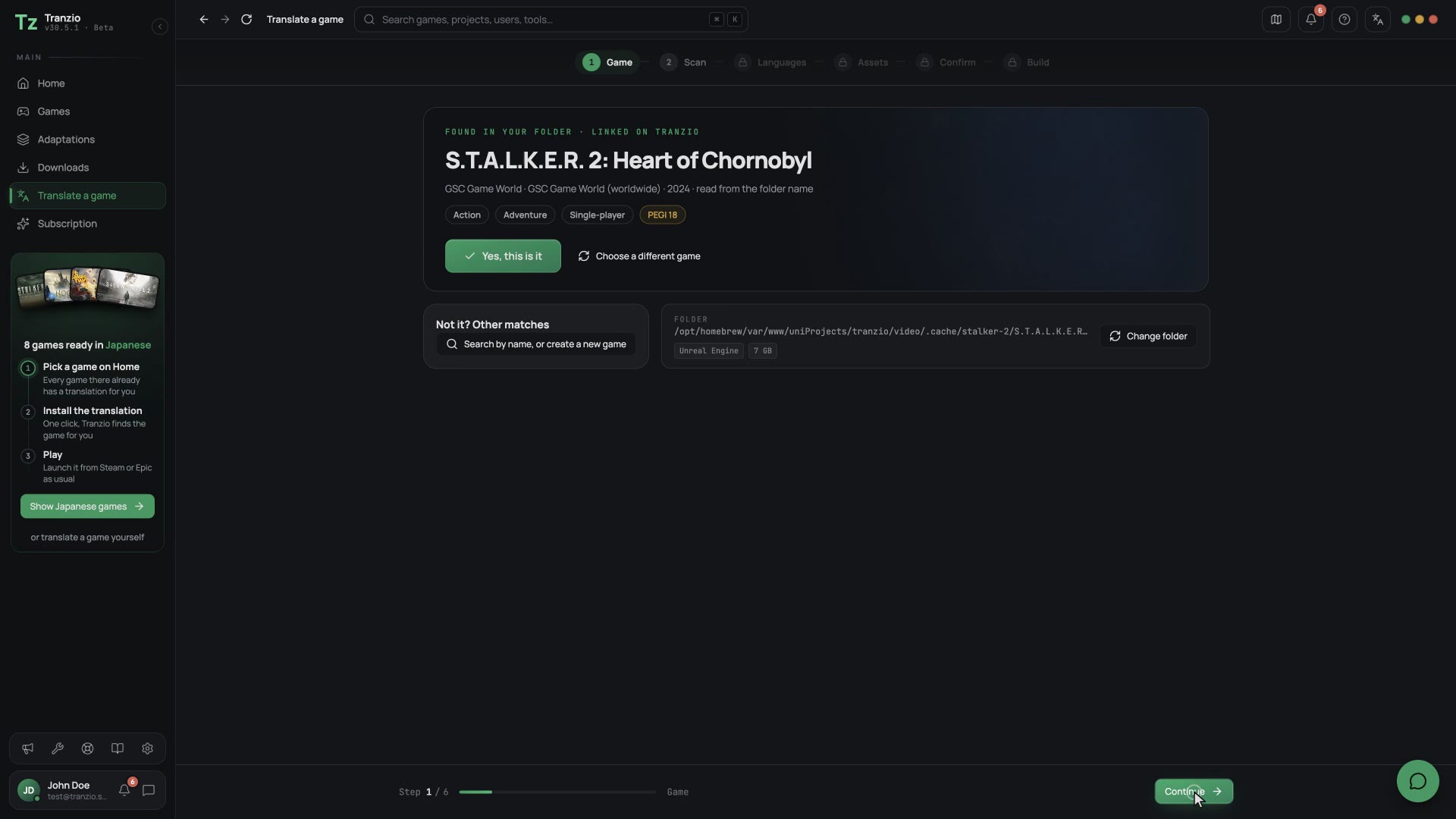 GIF
GIFA real scan of S.T.A.L.K.E.R. 2, sped up. The engine is identified, the archives are opened, and the counters climb as text, fonts and voice clips are found. When it finishes you get the inventory. These numbers are your project's size at a glance:
Text strings12,483Voice lines2,841Size284MBWhat a scan found: how many text strings, how many voice lines, and how big the extracted content is. Some games ship their archives encrypted, and nothing inside them can be read without that game's AES key. Tranzio spots this before scanning and finds the key itself in almost every case: it checks for one saved on this computer, then one another translator has shared, and then it reads the key out of the game's own program files. A game that decrypts its archives has to carry the key to do it, so that last step usually settles it in a second or two, needs no account and no connection, and cannot be out of date because it comes from the exact build you have.
You are only asked to paste a key when all three come back empty, which mostly means the game ships its program files packed so the key is hidden inside. The log names each step as it runs, so you can see which one found it. Archives that stay locked are skipped rather than read as empty, and the log says so.
Choose your languages
Set the language the game is written in (Tranzio guesses it from the files it found) and the language you're translating into. The target becomes your first adaptation's language; you can add more languages later as separate adaptations.
 GIF
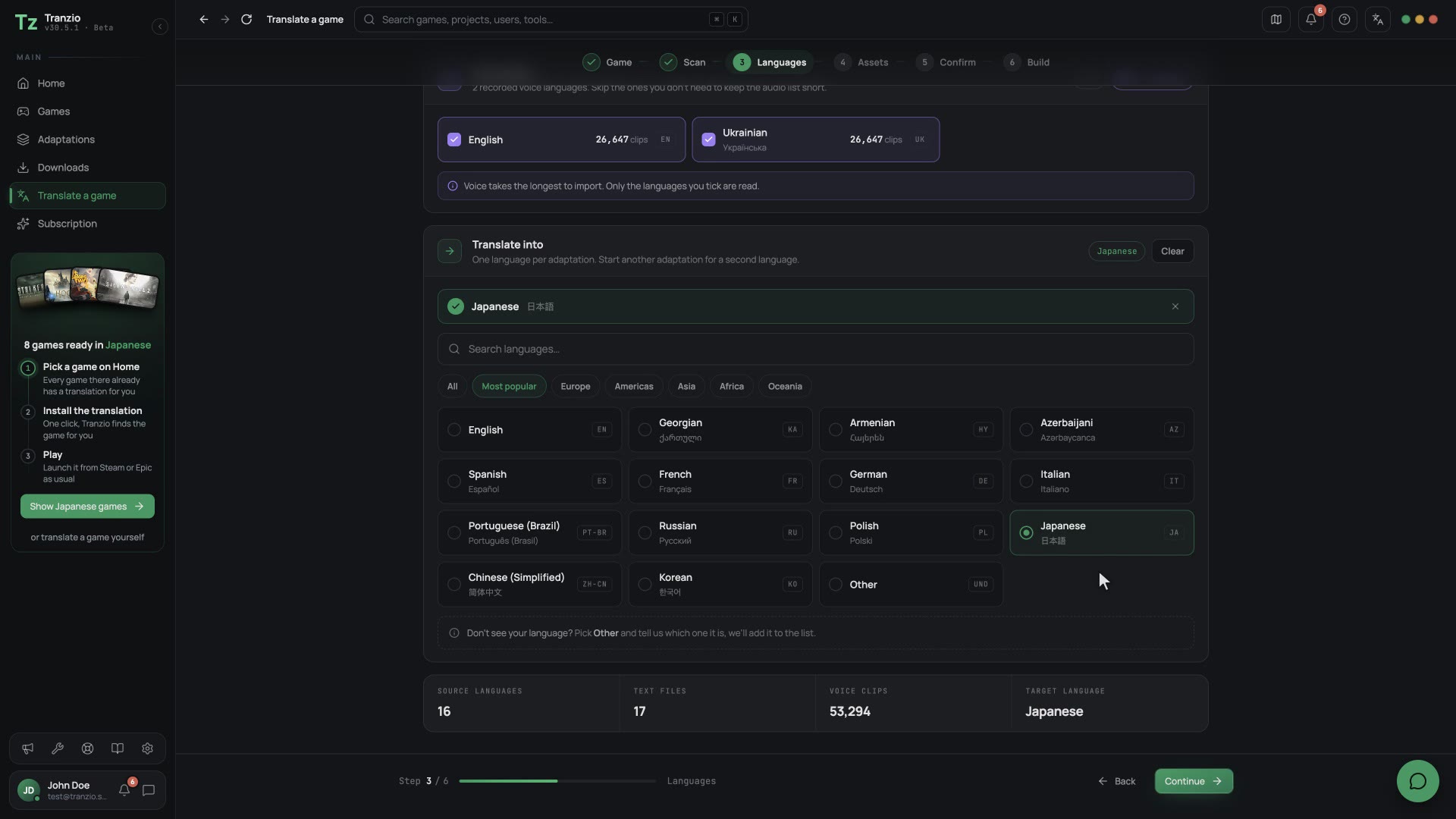
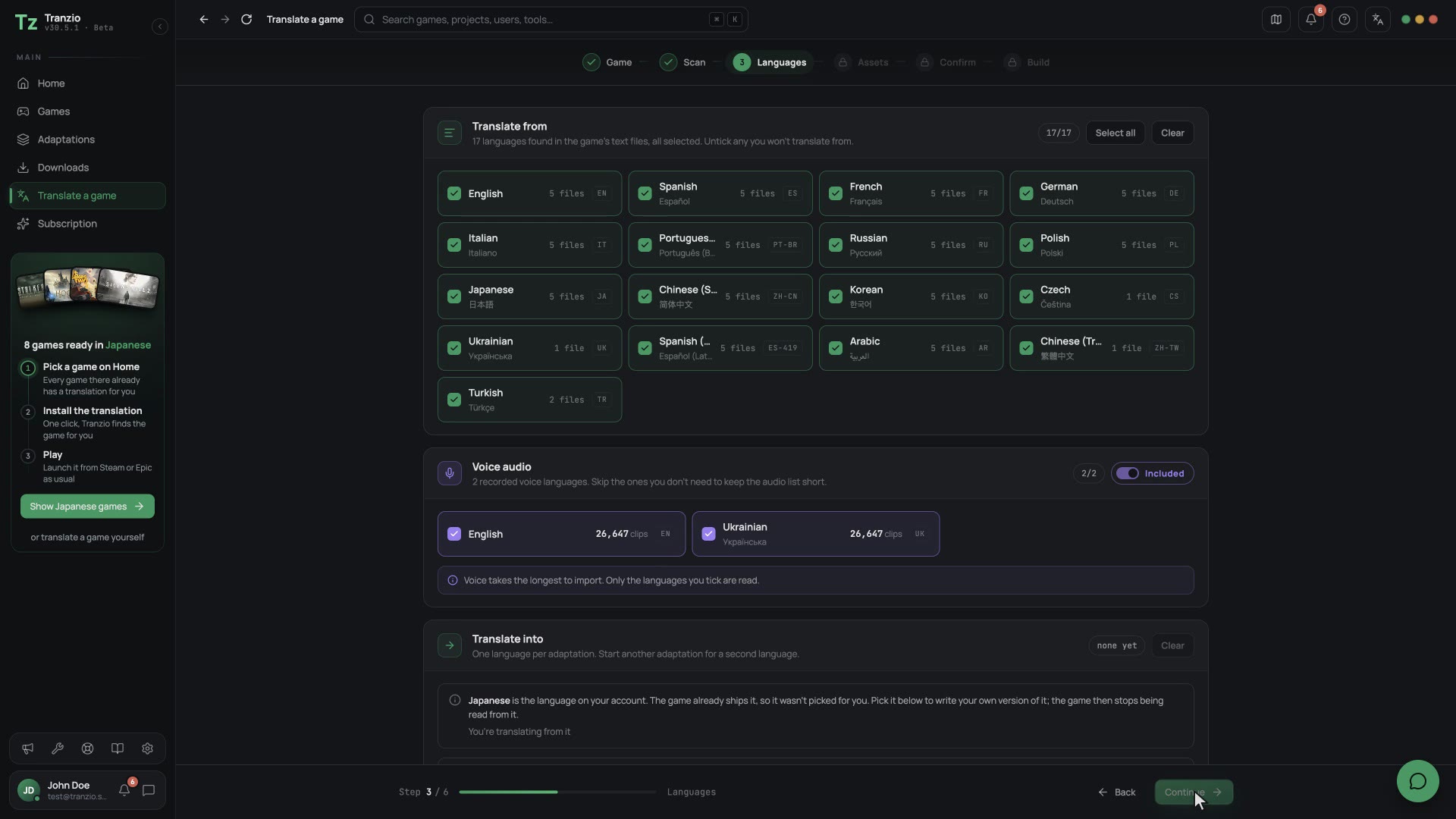
GIFS.T.A.L.K.E.R. 2's languages: 17 to translate from, its English and Ukrainian voices with 26,647 clips each, and Japanese picked to translate into. The game ships Japanese, so picking it takes Japanese off the list it is read from. JapanesePopular
Europe
Caucasus & Central Asia
Asia Pacific
The target language. Search or browse by region; pick one, and clear it from the banner above the list. A language may be greyed out with a line through it. That means this particular game is not open to translations into it, usually because the publisher already ships one or has asked for it to be left alone. Hover it and the reason is there. It only ever applies to the one game, so every other game in your library is unaffected.
A language the game already ships can be picked too, to write your own version of it: a funnier Japanese, say, or a fix for a translation you never liked. Picking it takes it off Translate from, because a game cannot be read from and written into the same language at once. Tranzio never does that on its own: when the language on your account is one the game ships, it is not picked for you, and the step says why. Tick it back under Translate from and the pick is cleared, with a note saying so.
If it happens to be the language Tranzio pre-filled for you, the pick is cleared and the step says so. Choose another one and you can carry on; the wizard will not move past this step without something to translate into.
What you pick here decides what the next step brings in. A game that ships fourteen translation folders offers all fourteen, and taking one off this list takes its files off the Assets step too, so you are not importing Japanese in order to translate from English. Put the language back and its files come back with it.
Voice works the same way, with one addition: clearing every voice language turns audio off altogether. The Audio list disappears from the Assets step and no clips are imported, which is what you want when you are translating text only. While any voice language is still selected, files that name no language at all (music, effects) are kept, because they are not duplicated per language and skipping them would lose them for good.
Both lists start with everything the scan found already ticked, and they stay that way until you change something. That matters if you scan again: a scan can turn up a language the first pass missed, and it arrives ticked like the rest rather than sitting there waiting to be noticed. Once you tick or untick anything, the list is yours and Tranzio stops adding to it.
One kind of voice language has to be worked out rather than read. An Unreal game keeps its own recordings at the plain content path and stacks translated copies on top, so only the copies say what language they are in. Tranzio reads the game's own configuration to name the rest, which is why a game can show you its original voice alongside its translations instead of only the translations.
Choose what gets imported
The Assets step is the one place the wizard hands you real control. It shows what the scan found as three cards (text, fonts and audio), each with how many are picked and why. Recommended means it is still the scan's own pick. Press Review on a card to open its files and tick exactly what comes in. The defaults are sensible, so most people click straight past it.
Game files are ticked for you. Engine built-ins are left out.
- Silksong/Content/Localization/Game/en
- Silksong/Content/UI/Menus.locres
- Engine/Content/Localization/Engine
The three asset lists. Text and fonts default to the game's own files, with the engine's built-ins left out. Voice languages are worth a look: importing five of them multiplies your audio list by five for no benefit if you only dub one. Some games list very few text files here, or none that are ticked. That is usually correct rather than a fault. What this list shows is translation bundles, and the engine's own built-in ones are listed but left unticked because nobody translates them. A game can have nothing else to show: S.T.A.L.K.E.R. 2 lists eight files, all of them engine built-ins, and not one bundle of its own.
Text kept inside the game's own assets never appears in this list and is imported anyway. Some games keep their entire script that way, in a single asset holding every line in every language they ship. When everything found is a built-in the step says so plainly, so an empty selection does not read as something that went wrong.
Confirm and finish
The final screen shows everything the wizard gathered over the game's art: the game, the languages, what gets imported and the tools. If something looks off, press Change under it (or the step in the bar) to fix it, then Set up and build.
Ready to set up
Stray Lanterns in Japanese
Nothing in the game changes yet. Setup imports the text and audio so you can start translating.
- Game
- Stray LanternsUnreal Engine 5 · Kitefall Studio
- Languages
- 3 → JapaneseEnglish, French and 1 more
- Import
- 62 text · 9 fonts1,402 of 2,841 audio clips
- Tools
- All available14 archives readable
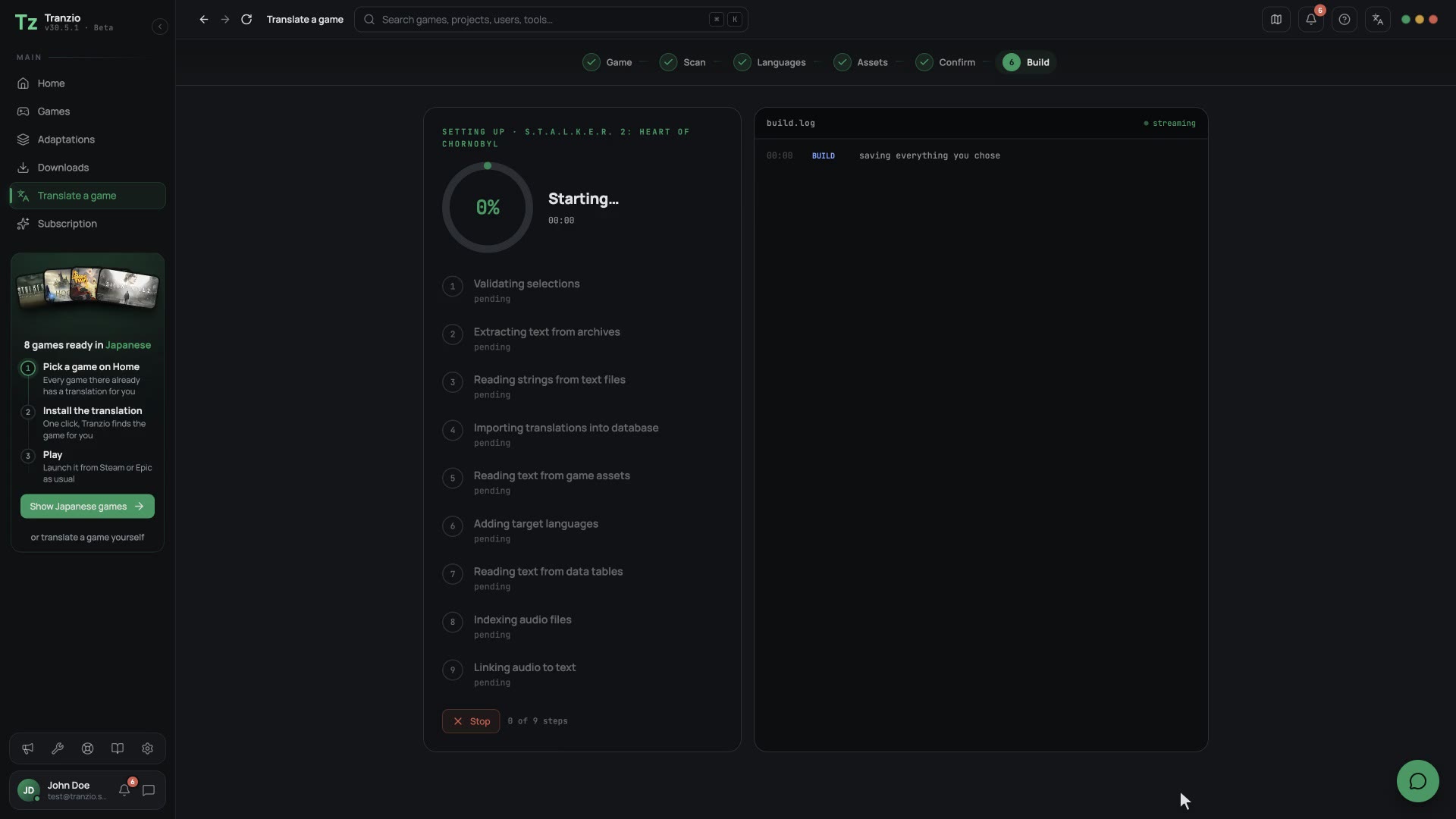
The confirmation card. One last look before the game joins your library, with a way back to the step behind each part. Finishing starts the import, and the last screen shows it running, the same way a build does: a ring and the steps over the game's art on the left, the live log on the right. The pipeline lists only the stages this game needs. A game with no translation bundles to extract does not show the three extraction stages at all, and a translation with no audio does not show the two audio ones, so the ticks and the counter agree with each other.
 GIF
GIFThe import of S.T.A.L.K.E.R. 2, sped up: each stage ticks off while the log on the right says what it is reading, until Open game appears. A stage that was expected but had nothing to do ends up marked nothing to do rather than sitting on "pending" after the build says it is complete, and it stops counting against the total, so a finished import reads "7 of 7" rather than "7 of 9".
Every stage says what it is working on. Reading a game's script out of its own packages can take minutes with no file count to show, so those stages name what they are sweeping through in the log rather than going quiet, and the ones that can count show a fraction beside the bar. A stage that genuinely cannot know how much work is left shows no fraction at all, because a number over zero is worse than no number.
Colour in the log follows how a line went, not which stage said it. Blue and green are ordinary progress, amber is worth a look, and red only ever means something failed. If the log has no red in it, nothing went wrong.
What the scan is actually doing
The scan is the only genuinely technical part of the wizard, and it helps to know what it's up to while the log scrolls. It runs in order, and each stage can stop the one after it:
| Stage | What happens |
|---|---|
| Engine detection | Tranzio reads the folder's file signatures to work out which engine built the game, then downloads whatever tools that engine needs. Anything that isn't Unreal stops here during the open beta, before any heavy work runs. |
| Audio signature | Right after the engine, the scan works out which audio system the game speaks: Audiokinetic Wwise, FMOD Studio, CRIWARE ADX, or Unreal's own audio. It reads the game's loose files and the executable's own bytes, and the log says what it found and why, because the verdict decides how voice lines will later be matched to text. |
| Archive check | Game archives are opened and their footers read. An encrypted one needs its AES key before anything inside it can be listed, so this happens before the scan proper. |
| The scan | Every archive is walked and a manifest written of what's inside. This is the part the progress bar tracks. |
| Asset listings | Text, fonts and audio are listed separately, along with the locales the game already ships, which is where the language step gets its guesses. |
| Picking the defaults | The last stage. Tranzio decides what to tick for you, then saves the draft. The log names each group and says how many it picked and how long it took. Until this finishes the panel reads "Almost there" rather than "Scan complete", because Continue only unlocks once the draft is written, and a screen that says it has finished while the button is still dead is the one thing worse than a wait. |
The log also says what a build will be able to do with what it found, before anything is imported: the codecs the voices are cooked in, how many clips can never take a dub and why (a sound bank, an IoStore container, a codec with no encoder), and any text files whose strings cannot be written back yet. Knowing this here saves recording two hundred lines that a build would then have to leave out.
Leaving before you finish
The moment you pick a game folder, Tranzio makes a folder of its own for the game and starts filling it: the scan writes every string it reads into it, and each step after that saves your choices there. So walking away part-way through isn't free, and the wizard says so rather than letting you find out later.
Click anything that would take you somewhere else, or use the back gesture, and the wizard stops you and asks. Staying puts you back on the step you were on, exactly as you left it. Choosing to leave stops the work, deletes the half-made game, and takes you where you were heading. There's no undo for it, which is why it's a question and not a toast.
Unfinished game
Leave and delete this game?
Hollow Knight: Silksong is only part-way added. Leaving now stops the work and removes everything the wizard has made so far. There is no way back to it.
What you loseNot recoverable
- The game folder Tranzio created when you picked the folder
- Everything the scan read out of the game's archives
- The languages, assets and details you have chosen so far
Scanning again is different. Scanning from a game's settings runs inside a game you already have, so leaving one only stops the scan. The game keeps every translation, dub and label it had, and you can start the scan again whenever you like.
Step tours
The first time you reach each step, a short tour points at its parts one at a time and says what each is for and what comes next. The very first visit starts with a few cards on how Tranzio works: it translates the game's own files and patches them into your copy, rather than laying a translation over the screen.
Skipping, turning tours off and playing one again work the same as on every other page: see Page tours in First steps.
What happens next
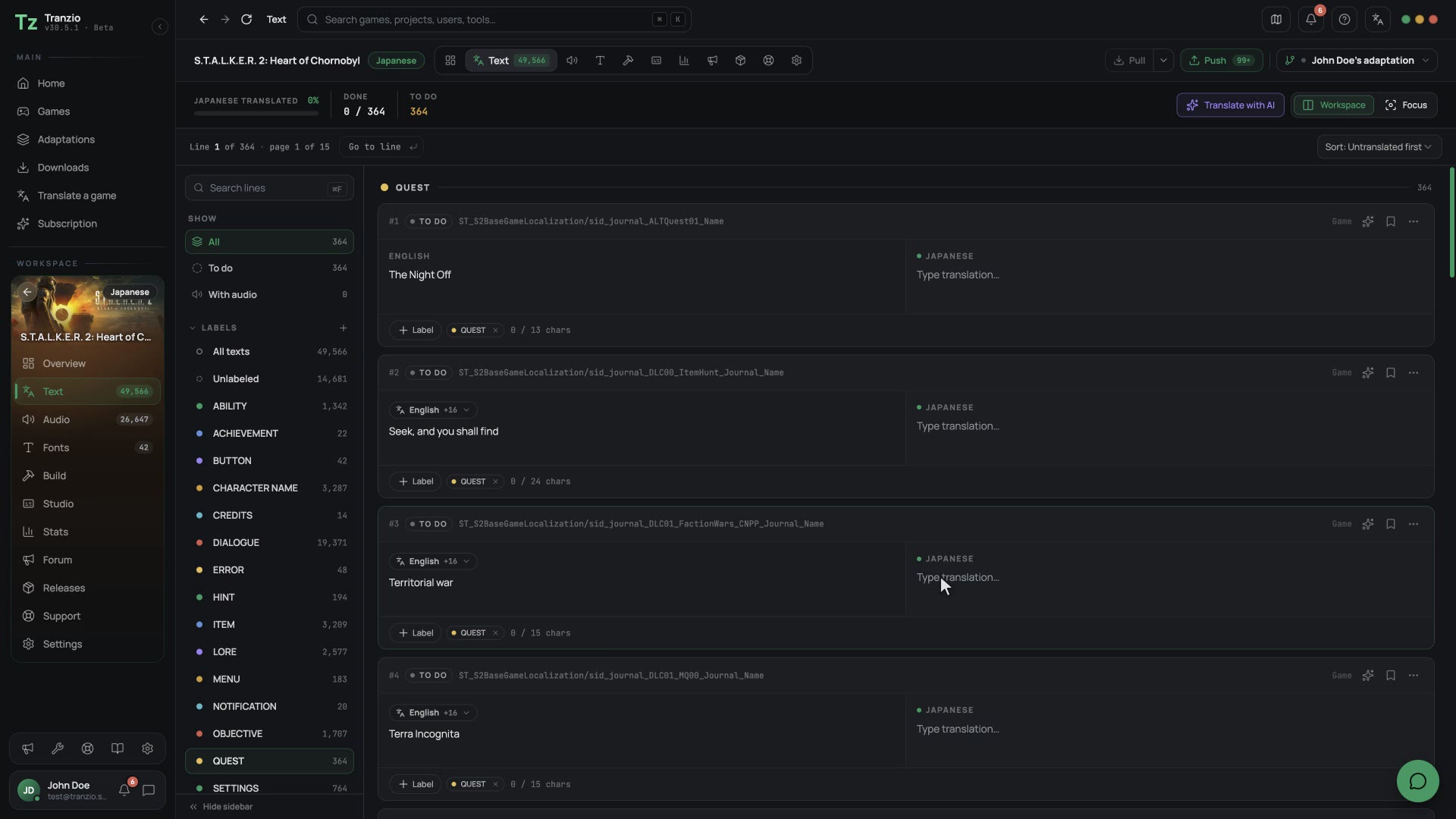
The game appears in your Games library with its own progress bar sitting at zero, and the Workspace section of the sidebar lights up for it. From here your path runs through the Workspace screens in whatever order suits you, though most people go: Translate for the text, Fonts so the alphabet displays, optionally Audio Lab for voices, and finally Build to turn it all into a patch.
 GIF
GIF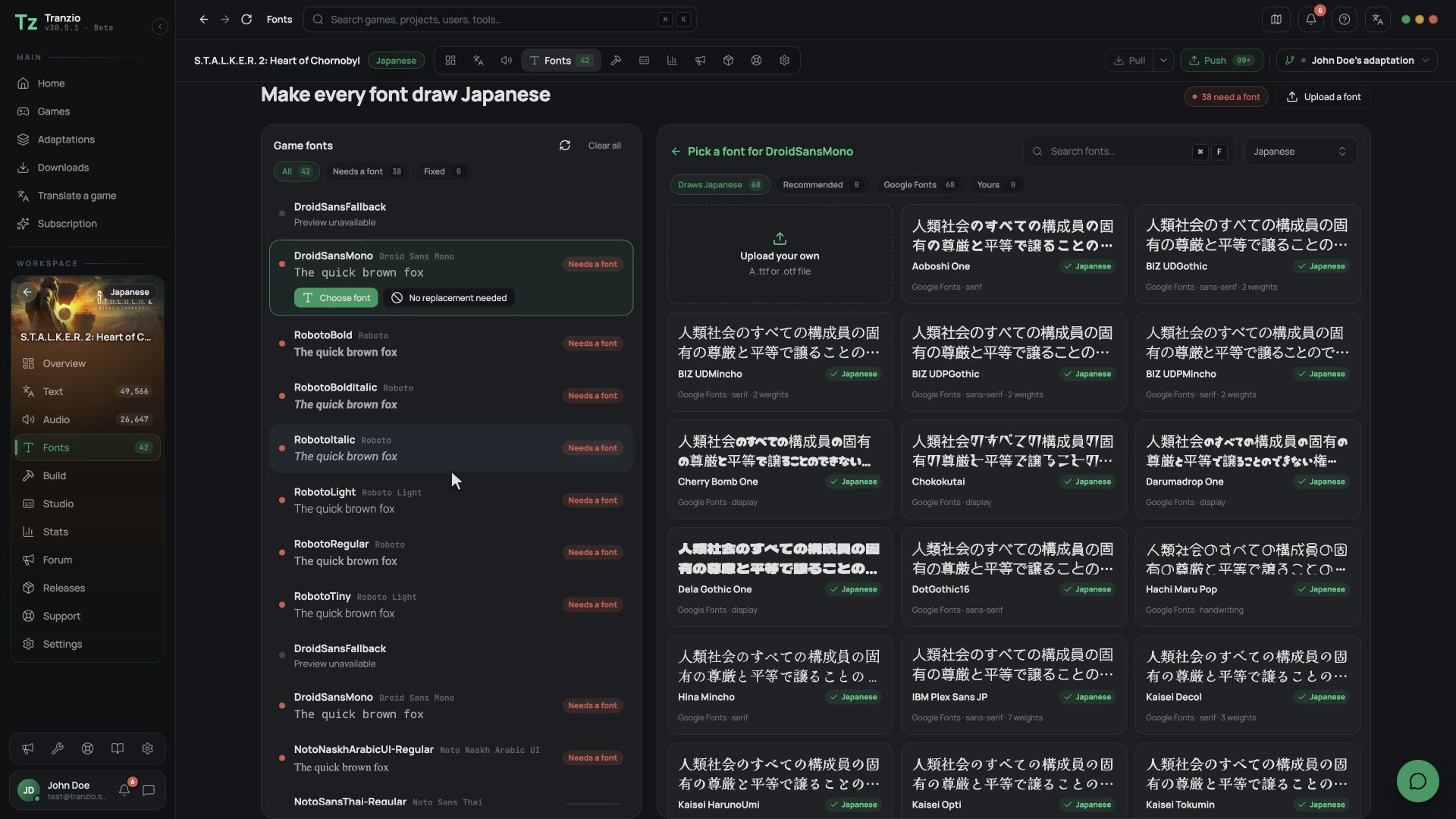 GIF
GIFYou don't have to finish anything before it's useful. Translate the menus tonight, build, and test in-game tomorrow. Small loops keep the project fun; the coverage numbers keep score for you.